On this page
- 1. Something starts with your Mac that you didn’t add
- 2. Screen Sharing, Remote Management or Remote Login is on
- 3. A device management profile you didn’t install
- 4. An app you don’t recognize has special permissions
- 5. A remote-control app you didn’t install
- 6. An app you don’t know is sending a lot of data
- 7. A password prompt you didn’t expect
- 8. Your Apple Account shows a device or sign-in you don’t know
- 9. Your browser changed by itself
- If you found something
- Check it in one place
- Frequently asked questions
- Sources
Probably not: a slow, hot or noisy Mac almost always has an ordinary cause. But some signs do point to someone else having access, and each one leaves something you can see in System Settings. This guide covers the nine worth checking, in the order we’d check them.
Usually nothing
- The fan runs after a macOS update
- Your Mac is slow while Spotlight indexes
- A web page says your Mac is infected
- The battery drains during video calls
- The green camera dot during a call you started
Worth checking
- A login item you didn’t add
- Screen Sharing or Remote Login is on
- A device profile you didn’t install
- An unknown app with special permissions
- A remote-control app you didn’t install
- An unknown app uploading a lot
- A password prompt you didn’t expect
- An unknown device on your Apple Account
- A browser that changed by itself
A web page that says your Mac is infected is a scam, not a sign of a hack. Close the tab. If you already called a number on it or let someone connect, follow “If you found something” below.
1. Something starts with your Mac that you didn’t add
Anything that wants to keep running has to start again after a restart, so this is the first place to look.
- Open System Settings > General > Login Items & Extensions.
- Read the Open at Login list. Each entry should be an app you use.
- Under App Background Activity, look for names you don’t recognize.
macOS also shows a “Background Items Added” notification when something new registers to start. If you saw one and didn’t install anything at that moment, check this list.
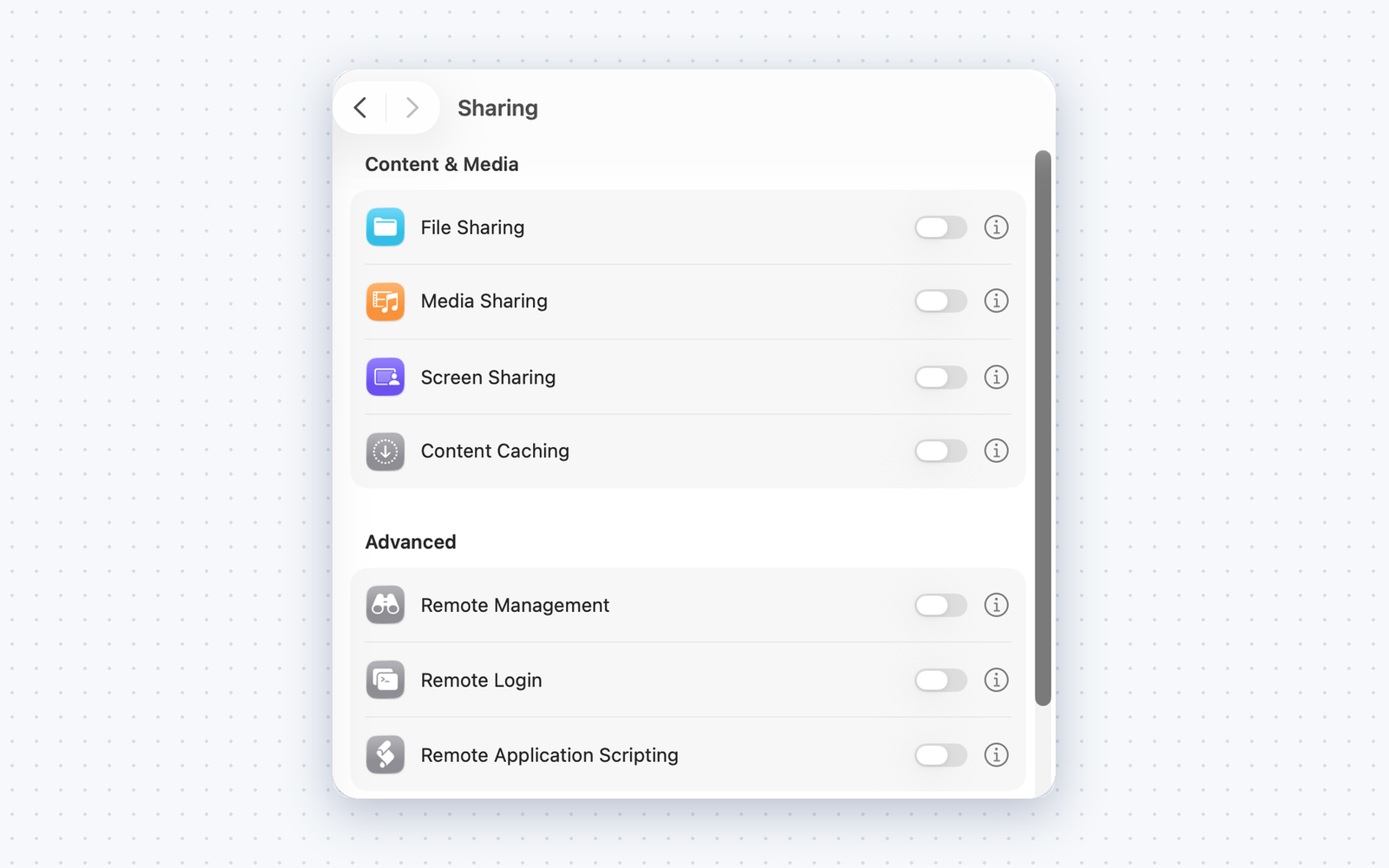
2. Screen Sharing, Remote Management or Remote Login is on
These three settings let another computer see, control or log in to your Mac. On a personal Mac, all three should be off.
- Open System Settings > General > Sharing.
- Check Screen Sharing, Remote Management and Remote Login.
- Turn off any that you didn’t turn on yourself.
To check all three at once in Terminal, run this. It prints nothing when all three are off:
netstat -an | grep LISTEN | grep -E '\.(22|5900|3283) '3. A device management profile you didn’t install
A configuration profile can change your network, browser and security settings. Work and school Macs have one on purpose. A personal Mac usually has none.
- Open System Settings > General > Device Management.
- If the list is empty, you’re done.
- If there’s a profile you didn’t add, select it and read what it changes. Then remove it with the minus button.
To check in Terminal whether your Mac is enrolled in device management:
profiles status -type enrollmentOn a personal Mac, both lines should end in No.
4. An app you don’t recognize has special permissions
Spyware needs permission to see your screen, read your keyboard or open your files. macOS asks you before any app gets these, so a hacked Mac usually shows an app here.
- Open System Settings > Privacy & Security.
- Open each of these: Accessibility, Input Monitoring, Screen & System Audio Recording and Full Disk Access.
- Every app listed should be one you gave access to on purpose, such as a password manager or a backup tool.
If you find one you don’t recognize, turn its switch off. Then search its name before you turn it back on.
5. A remote-control app you didn’t install
Tech-support scammers ask people to install remote-control apps such as AnyDesk, TeamViewer or a “support” app. With one running, they can see and use your Mac.
Open Finder > Applications and look for any of these. If one is there and you didn’t install it for someone you trust, quit it, then move it to the Trash. Also check Open at Login (step 1) for the same name.
6. An app you don’t know is sending a lot of data
Password stealers collect files and upload them in one go.
- Open Activity Monitor, in Applications > Utilities.
- Click the Network tab, then click Sent Bytes to sort by it.
- Look at the top of the list. Your browser, iCloud (
cloudd) and backup apps usually lead.
A name you don’t recognize near the top, while you aren’t uploading anything, is worth searching. Many unfamiliar names, such as cloudd and nsurlsessiond, are parts of macOS.
7. A password prompt you didn’t expect
The most common Mac malware doesn’t break in. It asks for your password in a window that looks like a macOS prompt.
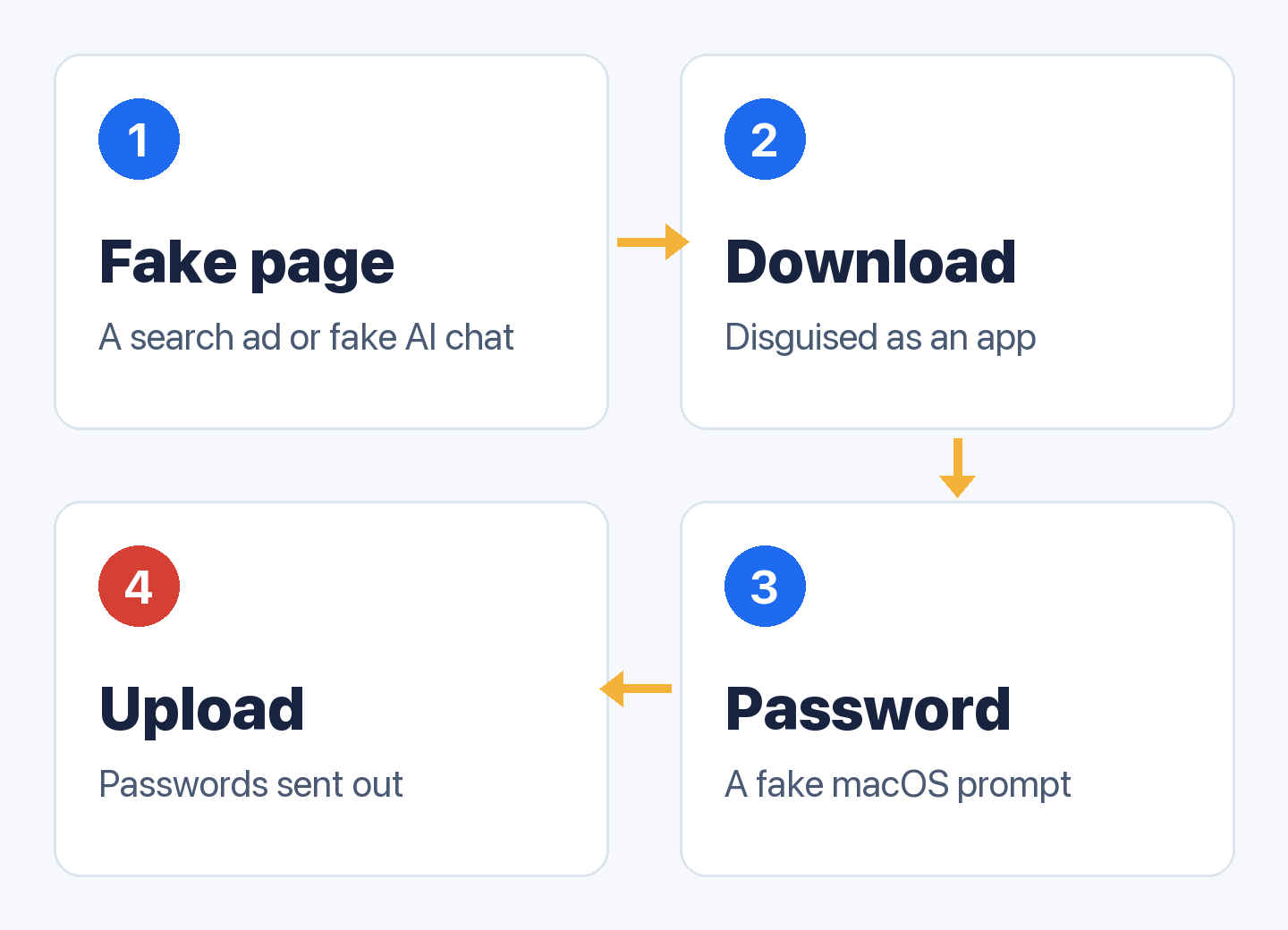
The window usually appears right after you open a download, often a “cracked” app or a fake update. Apple’s real prompts appear when you install or change something yourself.
8. Your Apple Account shows a device or sign-in you don’t know
Someone with your Apple Account can see your photos, messages and the location of your devices, without touching your Mac.
- Open System Settings and click your name at the top.
- Scroll down to the list of devices.
- Click any device you don’t recognize, then click Remove from Account.
If you find one, change your Apple Account password straight away. Apple’s page on a compromised Apple Account lists the other things to check.
9. Your browser changed by itself
Adware, the most common Mac malware, changes your browser. Look for a new home page, a different search engine, or an extension you didn’t add.
- Safari: Safari > Settings > Extensions.
- Chrome: go to
chrome://extensions. - Firefox: go to
about:addons.
Remove any extension you didn’t install. Then check step 3 again, because some adware also installs a profile to keep its settings.
If you found something
- Disconnect from the internet if you think someone is connected right now. Turn off Wi-Fi from the menu bar.
- Change your passwords from another device, starting with your Apple Account, email and bank.
- Turn off what you found: the sharing setting, the permission, the profile or the login item.
- Remove the app it belongs to. Quit it, move it to the Trash, then turn off its entry in Login Items & Extensions.
- Restart and check again. Anything that comes back after a restart has a startup item you missed.
If you found nothing, that’s the usual result. These checks cover the places Mac malware and spyware most often show up. They can’t prove a Mac is clean, but a hack that leaves no trace in any of them is rare.
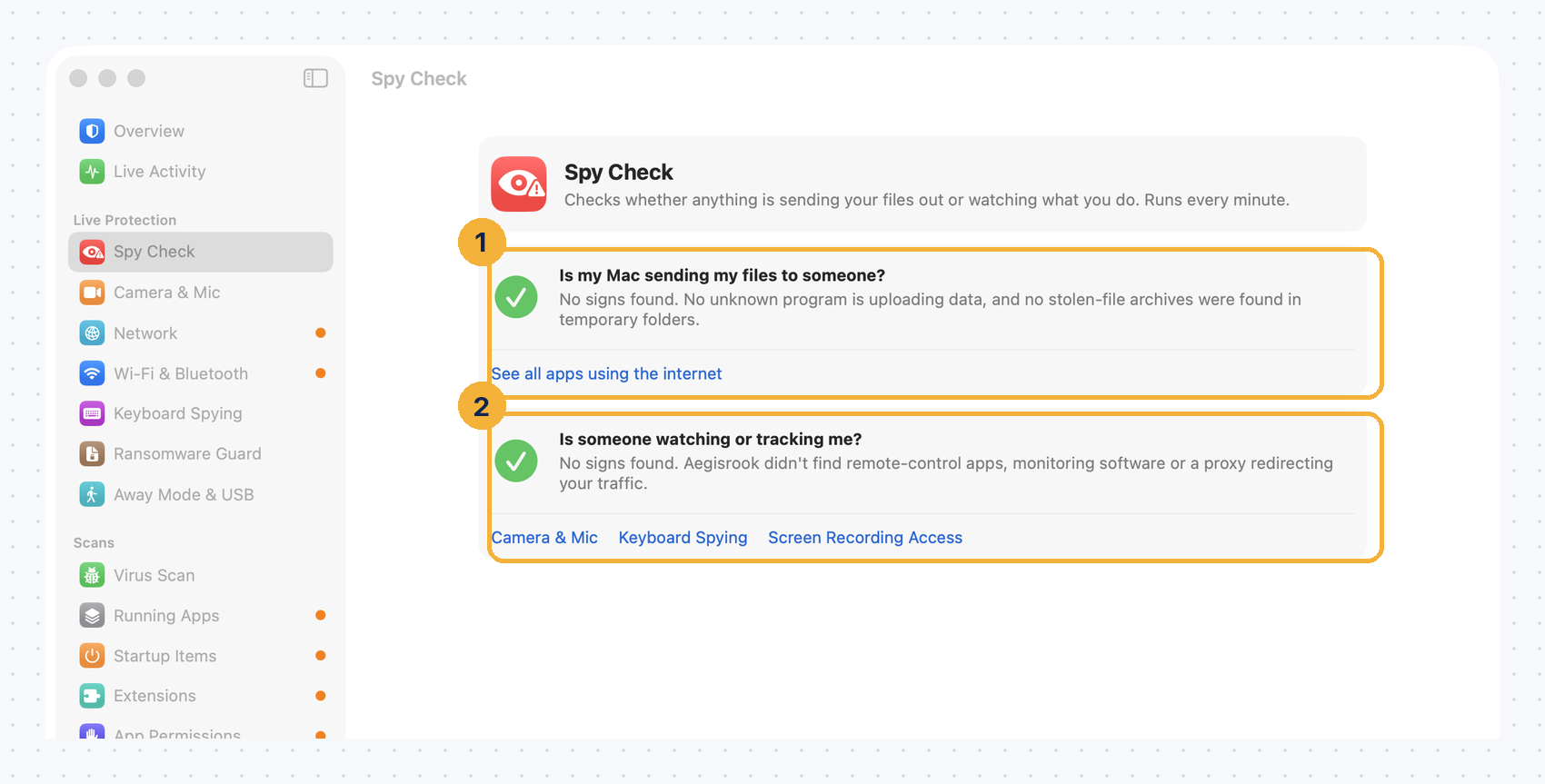
Check it in one place
Frequently asked questions
Can someone hack my Mac without me knowing?
It’s possible, but whatever they use usually leaves something behind: a startup item, a permission, a sharing setting or a profile. The checks above cover those places.
Can my Mac be hacked through Wi-Fi?
Rarely on its own. On a shared network, other devices can only reach services your Mac offers, such as Screen Sharing or File Sharing. Turning those off and turning on the Mac firewall closes that route.
Does a factory reset remove a hacker?
Erasing your Mac removes anything installed on it. It doesn’t remove access through your Apple Account, so change that password from another device first.
Does a slow Mac mean it’s hacked?
Almost never on its own. Spotlight indexing, Photos analysis, iCloud sync and backups are the usual causes. Check the Network tab in step 6 before assuming malware.
Sources
- Apple Support, Change Login Items & Extensions settings on Mac.
- Apple Support, Turn Mac screen sharing on or off and Allow a remote computer to access your Mac.
- Apple Support, Control access to screen and system audio recording on Mac.
- Apple Support, Review devices signed in to your Apple Account and If you think your Apple Account has been compromised.
- Terminal commands and setting names checked on macOS 26.0.1 (25A362), 31 October 2026.
How we tested. Every step was checked on macOS 26.0.1 (25A362), MacBook Pro (16-inch, 2021), 31 October 2026. Menus and wording can differ on other versions of macOS.